Have you ever scanned an important document and want to merge the scanned documents ? Maybe you scanned a contract, assignment, ID documents, receipts, or notes, and now you have five or ten different JPG files sitting in a folder.
Managing multiple scanned images can quickly become frustrating. Finding the right page, keeping them in order, and sharing several files at once takes extra time and effort.
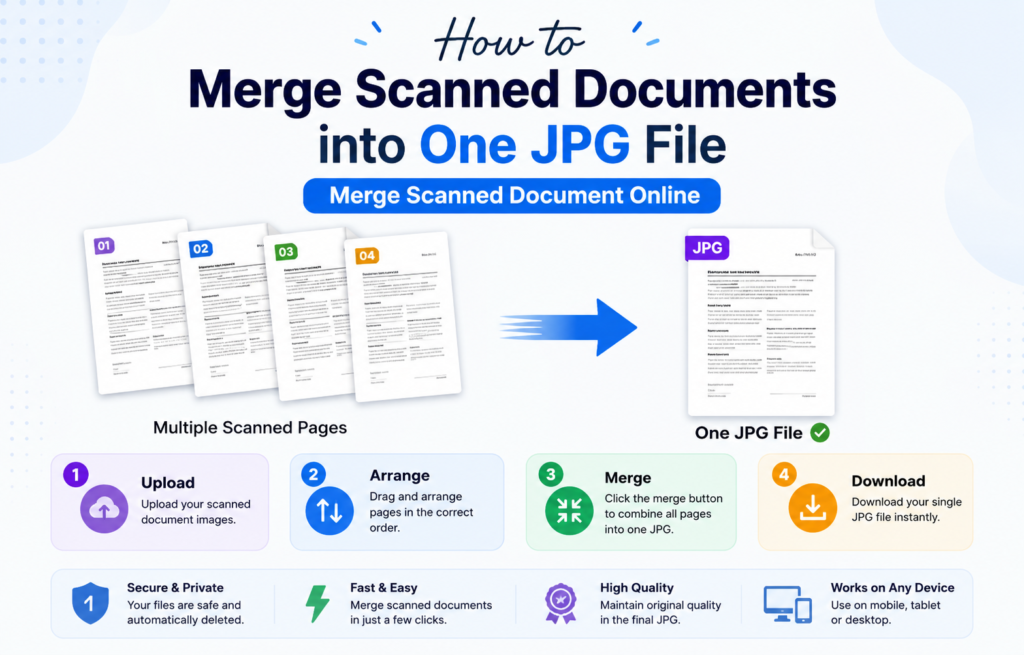
The good news is that you don’t have to keep your scanned pages separate. You can easily merge them into one JPG file in just a few clicks.
This guide explains why combining scanned documents is useful, when you should do it, and how to merge scanned pages online for free.
Why Merge Scanned Documents into One JPG?
Scanning documents page by page often creates multiple image files. While that’s perfectly normal, dealing with many separate files can become messy.
Combining your scanned pages into one JPG file makes everything easier to manage. Instead of sending several attachments, you only need one file. Instead of searching through multiple images, everything stays together in a single place.
Whether you’re a student, office worker, freelancer, or simply organizing personal records, merging scanned documents can save time and reduce confusion.
Benefits of Combining Scanned Documents
1. Keep Your Files Organized
Imagine opening a folder filled with files named:
- Scan001.jpg
- Scan002.jpg
- Scan003.jpg
- IMG_2487.jpg
After a while, it’s hard to remember which file contains which page. Combining everything into one JPG creates a cleaner and more organized document that is easier to rename, save, and find later.
2. Easier to Share
Sending ten separate scanned images through email or messaging apps isn’t convenient. Some platforms even limit the number of attachments you can upload.
A single JPG file is much easier to share. You simply upload one file instead of multiple images.
3. Save Time
Managing several files takes extra effort. You need to select each image individually and make sure nothing gets left behind. When all pages are combined into one JPG, everything stays together, making your workflow much faster.
4. Perfect for Assignments and Applications
Many schools, universities, and organizations ask applicants to upload documents in image format. Combining all scanned pages into one JPG keeps your documents neat and professional while reducing the chance of missing pages.
5. Better Document Management
Keeping related pages together makes future access much easier. Whether you’re storing invoices, handwritten notes, business documents, or personal records, a single file is much simpler to manage.
When Should You Merge Scanned Documents?
Merging scanned pages is useful in many situations:
- Submitting assignments
- Sending contracts to clients
- Sharing receipts and invoices
- Organizing handwritten notes
- Storing certificates and records
- Uploading documents for applications
- Creating digital copies of paperwork
- Sharing scanned forms with colleagues
Basically, if several pages belong to the same document, combining them into one JPG usually makes things easier.
How to Merge Scanned Documents into One JPG Online
You don’t need any software or technical knowledge. Most online tools allow you to merge scanned images within seconds. You can Also Merge Scanned documents through our tool Based Website Combine JPG Online. You just have to follow the simple steps to Merge the Scanned documents
Step 1: Upload Your Scanned Pages: Select all the scanned images that belong to the same document. You can upload multiple JPG, PNG, or scanned image files.

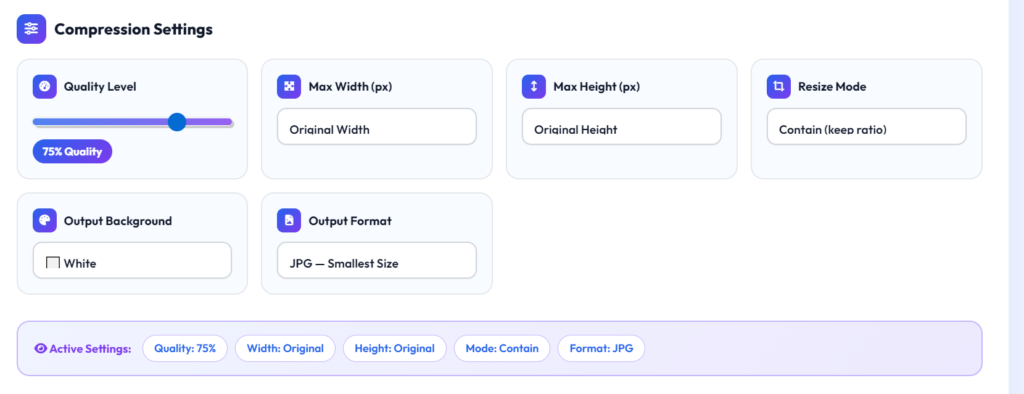
Step 2: Customize Image Settings
Step 3: Click the Merge Button
Once everything looks correct, click the merge button. The tool will process your images and combine them into one JPG.

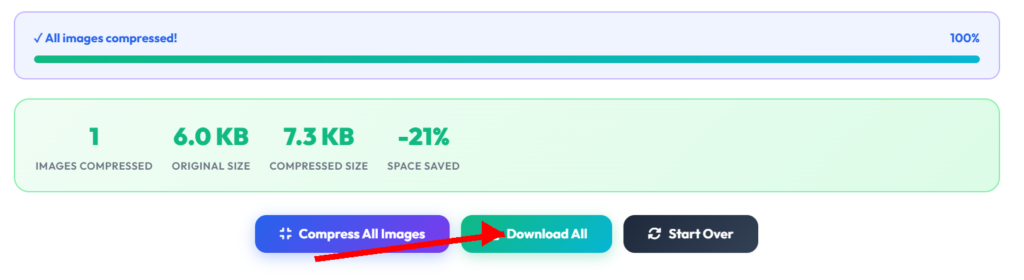
Step 4: Download Your Merged JPG
After processing is complete, download your new file. You now have one organized JPG containing all your scanned pages.
Why Use an Online Scanned Document Merger?
Online tools have become popular because they are simple and convenient.
No Software Installation : You don’t need to download complicated programs or applications.
Works on Any Device
Most online tools work on:
- Windows computers
- Mac devices
- Android phones
- iPhones
- Tablets
Free to Use
Many document-merging tools are completely free and don’t require subscriptions.
Fast Processing
Combining scanned documents usually takes only a few seconds.
User-Friendly :Most tools are designed for everyone, including beginners. You simply upload, arrange, merge, and download.
Tips Before Merging Scanned Documents
To get the best results, keep these simple tips in mind.
Scan Clearly
Blurry scans can make documents difficult to read later.
Keep Pages in Order
Double-check the page sequence before merging.
Remove Unnecessary Pages
Delete duplicate or unwanted scans before creating the final JPG.
Use Meaningful File Names
Instead of naming files “Scan001” or “Image123,” use names like:
- Assignment.pdf
- Client Contract.jpg
- Expense Receipts.jpg
Good file names make documents easier to identify later.
Common Uses of Merged JPG Documents
People merge scanned documents for many different reasons.
Students
Students often combine assignment pages, notes, and project documents before submitting them online.
Professionals
Business professionals merge contracts, reports, invoices, and forms for easier sharing and storage.
Freelancers
Freelancers frequently send agreements, receipts, and project documents to clients in a single file.
Personal Use
Many people organize certificates, identification documents, medical reports, and important records by combining them into one image.
Why a Single JPG Is Better Than Multiple Images
Keeping multiple scanned images separate can become confusing over time. Files get misplaced, pages become mixed up, and sharing takes longer than necessary.
A single JPG solves these problems by keeping every page together in one place.
You only need to:
- Save one file
- Upload one file
- Rename one file
- Share one file
- Store one file
This simple approach makes document management much more convenient.
FAQs About Merge Scanned documents
1. What does it mean to merge scanned documents?
Merging scanned documents means combining multiple scanned pages or images into one single JPG file. Instead of keeping several separate scans, all pages are stored together in one image.
Why should I merge scanned documents into one JPG?
Combining scanned pages makes your files easier to organize, share, and store. A single JPG is much more convenient than managing multiple image files.
Can I merge scanned documents for free?
Yes. Most online document merger tools let you combine scanned pages into one JPG completely free, without requiring software installation or registration.
What file formats are supported?
Most online tools support popular image formats such as JPG, JPEG, PNG, and scanned image files generated by mobile scanners and desktop scanners.
Will the quality of my scanned documents decrease after merging?
No. A good document merger preserves the original quality of your scans, ensuring that text and images remain clear and readable.
Final Thoughts
Scanning documents often leaves you with several separate image files. While this works, managing multiple scans isn’t always practical. Merging scanned documents into one JPG creates a cleaner, more organized file that is easier to store, share, and access whenever you need it.
The process is simple: upload your scanned pages, arrange them in order, click merge, and download your new JPG. Within seconds, all of your pages become one neatly organized document. Whether you’re submitting assignments, sharing paperwork, organizing records, or keeping personal documents together, combining scanned pages into one JPG is a quick and convenient way to simplify document management.
- How to Merge PNG Images into One File Online? Best Tools and Tricks
- How to Combine Product Images into One Picture for Ecommerce | Combine Online Now
- How to Reduce Image Size Without Losing Quality – Complete Guide
- How to combine multiple images in single image in android?
- How to Merge Scanned Documents into One JPG File | Merge Scanned Document Online
About The Author