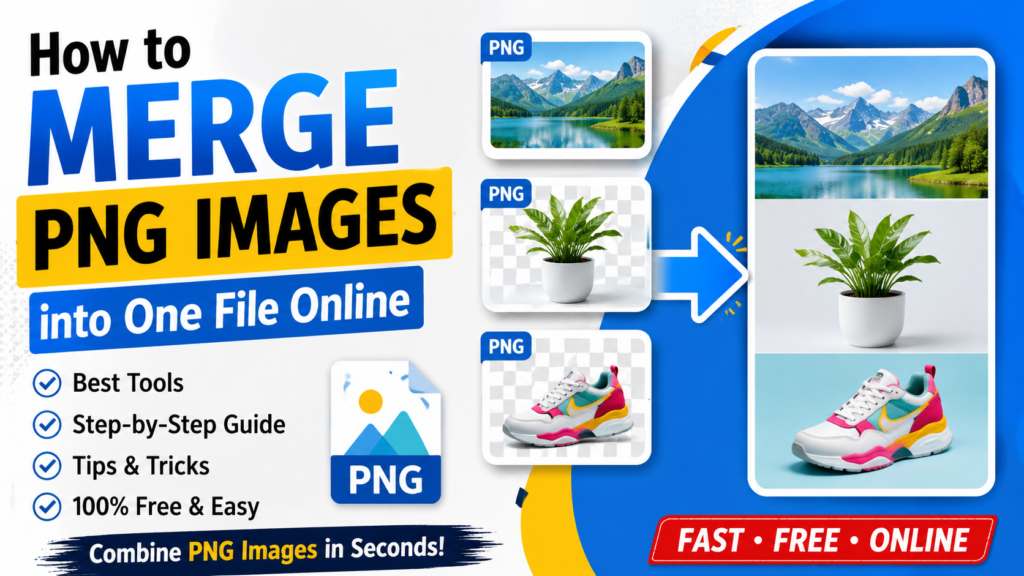
If you need to merge PNG images into a single file, you no longer need expensive software or advanced editing skills. Whether you’re creating product collages, combining screenshots, preparing social media posts, or organizing multiple transparent images, online PNG merger tools make the process fast and simple.
In this guide, you’ll learn how to merge PNG images online, discover the best tools, understand the benefits, and follow professional tips for creating high-quality merged images.
What Does It Mean to Merge PNG Images?
To merge PNG images means combining two or more PNG files into one single image. Instead of keeping multiple separate files, you arrange them vertically, horizontally, or in a custom grid and export them as one image.
This is useful for:
- Creating product collages
- Combining screenshots
- Making before-and-after comparisons
- Sharing multiple designs in one image
- Preparing images for presentations
- Creating printable layouts
Why Merge PNG Images?
There are many reasons people choose to merge PNG images instead of sending multiple files.
- Easier File Sharing: A single merged image is much easier to upload, email, or share on messaging apps.
- Better Organization: Instead of managing several PNG files, you only need one organized image.
- Professional Presentation: Businesses, online stores, and designers often display multiple products in one image.
- Save Time: Viewing one merged image is faster than opening several separate files.
- Perfect for Social Media: Platforms like Instagram and Pinterest often benefit from combined image layouts.
How to Merge PNG Images Online
Follow these simple steps.
- Step 1: Open the PNG Merger Tool: Visit your favorite online image merger Combine PNG Images online .
- Step 2: Upload PNG Images: Select all PNG images you want to combine.
- Step 3: Arrange the Images: Choose how your images should appear.
- Vertical
- Horizontal
- Grid
- Custom Layout
- Step 4: Adjust Spacing: Customize the layout settings as needed.
- Margins
- Padding
- Background Color
- Image Order
- Step 5: Preview the Result: Check the final layout before exporting.
- Step 6: Download: Click Merge or Download to save your combined PNG image.
Best Online Tools to Merge PNG Images
Despite its name, it also supports PNG images.
Features:
- Free to use
- No registration
- Fast processing
- Multiple layouts
- High-quality output
- Works on mobile and desktop
A drag-and-drop editor that allows complete control over image placement.
Best for:
- Social media graphics
- Marketing materials
- Posters
3. PineTools
A lightweight PNG merger for quick image combining.
Features:
- Simple interface
- Adjustable spacing
- Vertical and horizontal layouts
4. IMGonline
Ideal for users needing advanced image merge settings.
Features:
- Custom positioning
- Transparent background support
- High-resolution export
Common Uses of Merged PNG Images
- Ecommerce Listings: Display multiple product angles, colors, or variations in a single image for professional product listings.
- Website Graphics: Combine icons, banners, screenshots, and interface elements into one organized graphic.
- Design Portfolios: Showcase multiple projects, concepts, or artwork together in a single presentation image.
- Educational Material: Merge diagrams, charts, screenshots, and illustrations to create clear learning resources.
- Social Media: Create eye-catching posts, promotional graphics, and visual collages for platforms like Instagram, Facebook, and Pinterest.
- Business Presentations: Combine charts, graphs, product photos, and visuals into one image for professional presentations.
Benefits of Using Online PNG Merger Tools
- No software installation required
- Works directly in your browser
- Free for most users
- Supports multiple PNG uploads
- High-quality exports
- Easy drag-and-drop interface
- Compatible with Windows, Mac, Android, and iPhone
Tips for Better Results When You Merge PNG Images
Use High-Resolution Images
Higher-quality PNG files produce sharper merged images.
Keep Similar Image Sizes
Matching dimensions create a cleaner layout.
Arrange Images Logically
Place images in a meaningful order for better readability.
Don’t Overcrowd
Leave enough spacing between images.
Maintain Transparency
If your images have transparent backgrounds, choose a tool that preserves PNG transparency.
Preview Before Downloading
Always inspect the merged result before saving.
Common Mistakes to Avoid
- Using Low-Quality PNG Files: Poor-quality images can reduce the overall appearance of the merged image.
- Mixing Different Aspect Ratios: Combining images with very different dimensions may create an uneven and unbalanced layout.
- Ignoring Alignment: Misaligned images can make the final result look unprofessional and difficult to view.
- Too Many Images: Adding too many PNG files to a single image can make the layout cluttered and less effective.
- Forgetting Transparency: Some online tools may replace transparent backgrounds with white, so choose a tool that preserves PNG transparency.
How to Merge PNG Images on Mobile?
Most online tools work perfectly on smartphones.
Simply:
- Open the website
- Upload PNG files
- Arrange them
- Merge
- Download
No app installation is required.
Merge PNG Images Without Losing Quality
To preserve image quality:
- Upload original PNG files.
- Avoid unnecessary resizing.
- Choose the highest available output quality.
- Use tools that do not compress images excessively.
- Download in PNG format whenever possible.
PNG vs JPG for Merged Images
| Feature | PNG | JPG |
|---|---|---|
| Transparency | ✅ Yes | ❌ No |
| Image Quality | Excellent | Good |
| Compression | Lossless | Lossy |
| File Size | Larger | Smaller |
| Best For | Graphics, logos, screenshots | Photographs |
Who Should Merge PNG Images?
- Ecommerce sellers
- Graphic designers
- Students
- Teachers
- Bloggers
- Content creators
- Digital marketers
- Social media managers
- Web designers
- Small businesses
Frequently Asked Questions (FAQs)
Is it free to merge PNG images online?
Yes. Most online PNG merger tools allow you to merge PNG images for free without creating an account.
Will merging PNG images reduce image quality?
Not necessarily. If the tool supports lossless PNG processing, your merged image will maintain its original quality.
Can I merge PNG images while keeping transparent backgrounds?
Yes. Many PNG merger tools preserve transparency, but always verify this feature before downloading.
Can I merge PNG images on my phone?
Absolutely. Most browser-based tools work on Android and iPhone without installing an app.
Is there a limit to how many PNG images I can merge?
The limit depends on the tool. Some support dozens of PNG files, while others may restrict uploads based on file size or quantity.
Can I rearrange images before merging?
Yes. Most online tools let you drag and reorder images before creating the final merged file.
What is the best format to save the merged image?
If you need transparency and maximum quality, save it as PNG. If you prefer a smaller file size for photos, JPG may be a better choice.
Conclusion
Learning how to merge PNG images online can save time and improve the way you present multiple visuals. Whether you’re creating ecommerce listings, combining screenshots, designing social media graphics, or organizing documents, an online PNG merger makes the process quick and hassle-free.
Choose a reliable tool, upload your PNG files, arrange them in the desired layout, and download a high-quality merged image in just a few clicks. With the right approach, you can merge PNG images efficiently while preserving quality, transparency, and a professional appearance.
About The Author