
Image Crop Tool
Crop Image Online, rotate & flip your images — processed privately in your browser
Crop Image Online Free – Fast & Easy Photo Cropper | CombineJPGOnline.com
Need to crop image online without downloading software? You are in the right place. CombineJPGOnline.com offers a completely free image cropper that works directly in your browser — no installation, no signup, and no watermark on the final result.
Whether you want to crop a photo for Instagram, trim a screenshot, remove unwanted borders, or resize an image to a specific aspect ratio, our free online photo cropper handles it all in just a few clicks. Your image never leaves your device, which means 100% privacy guaranteed.
What Is an Online Image Cropper?
An online image cropper is a browser-based tool that lets you cut or trim any part of a photo without using software like Photoshop or Lightroom. You simply upload your image, drag the crop box to select the area you want to keep, and download the cropped result instantly.
Our crop image online free tool goes one step further — all processing happens locally in your browser using HTML5 Canvas technology. No file is ever uploaded to any server. This makes it the safest and fastest way to crop photos online.
Key Features of Our Free Image Crop Tool Tool
In this tool what Features we are providing all the details of this Image crop tool are given below .We have designed this image crop Tool Specially for the person who are working the the multimedia on daily basics.
- Drag-and-Drop Crop Box – Simply click and drag on your image to create a custom crop area. Resize it from any corner or edge handle, or move the entire selection box to position it exactly where you want.
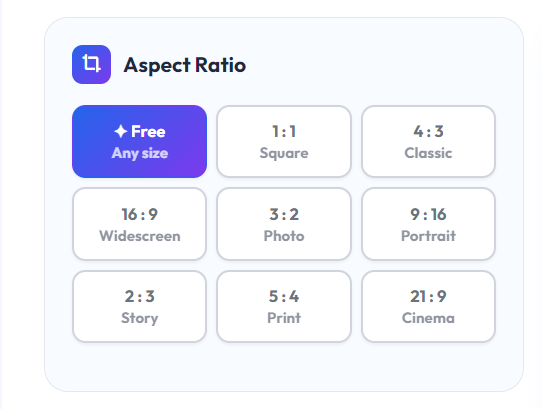
- 9 Preset Aspect Ratios – Choose from multiple preset ratios including Free, 1:1, 4:3, 16:9, 3:2, 9:16, 2:3, 5:4, and 21:9. Perfect for Instagram posts, profile pictures, YouTube thumbnails, Stories, Reels, Pinterest graphics, posters, and more.
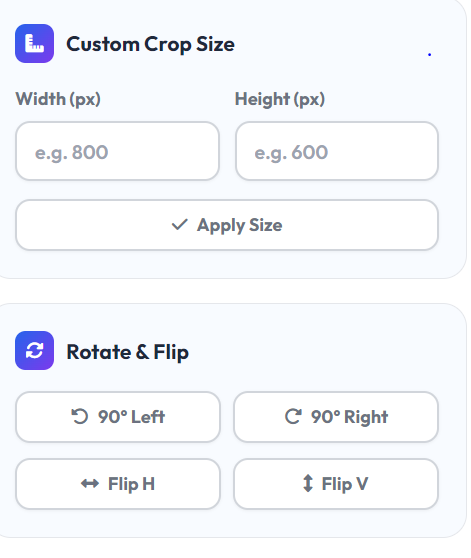
- Custom Crop Size in Pixels – Enter an exact width and height in pixels to automatically set the crop area to your required dimensions. Ideal for website images, social media graphics, and print-ready designs.
- Rotate Your Image – Rotate your photo 90 degrees left or right before cropping. This helps fix images captured in the wrong orientation and ensures better composition.
- Flip Horizontal & Vertical – Instantly mirror your image horizontally or vertically. Great for correcting selfies, creating symmetrical designs, or adjusting product photos.
- Multiple Output Formats – Download your cropped image as PNG, JPG, or WebP. PNG is ideal for transparency, JPG offers smaller file sizes for photos, and WebP provides modern web-friendly compression. You can also adjust JPG and WebP quality with a simple slider.
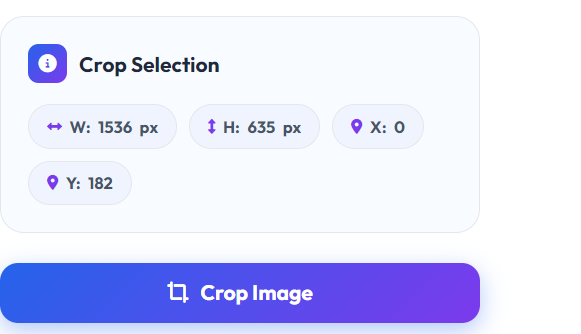
- Real-Time Crop Information – View the exact crop width, height, X position, and Y position in real time as you adjust the crop box, giving you complete control over your image dimensions.
- 100% Private – No Upload Required – Your images are never uploaded to a server. Everything is processed locally in your browser, ensuring complete privacy, faster performance, and maximum security for all your photos.
How to Crop Image Online Free Through our Crop Image tool?
Cropping an image on CombineJPGOnline.com takes less than 30 seconds. Here is how:
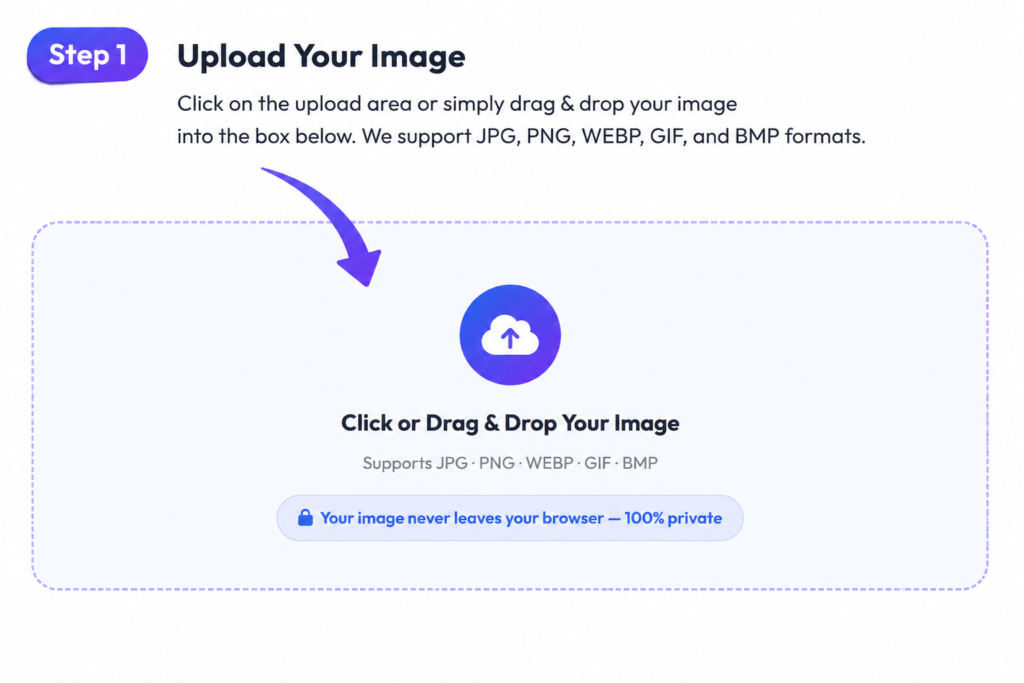
Step 1 — Upload Your Image Click the upload area or drag and drop your photo directly onto the page. Supports JPG, PNG, WEBP, GIF, and BMP formats up to 50MB.
Step 2 — Select Your Aspect Ratio (Optional) Choose from 9 preset aspect ratios like 1:1, 16:9, 4:3, or leave it on Free for a fully custom crop.
Step 3 — Draw Your Crop Area Click and drag on the image to draw your crop selection. Use the 8 handles around the crop box to resize it precisely. Drag inside the box to move it. and Rotate or Flip If Needed : Use the Rotate 90° Left or Right buttons to fix the orientation. Toggle Flip Horizontal or Flip Vertical if needed.
Step 4 — Choose Output Format Select PNG, JPG, or WebP. For JPG and WebP, adjust the quality slider if you want a smaller file size.
Step 5— Click Crop Image Hit the Crop Image button. Your cropped photo appears instantly in the preview.
Step 6— Download Click Download Image to save your cropped photo to your device. Done!
Who Uses an Online Image Cropper?
Our free photo cropper is used by millions of people across many different needs:
Social Media Managers crop photos to exact platform dimensions — square for Instagram feed, vertical for Stories, landscape for Facebook covers.
Bloggers and Content Creators crop hero images, featured images, and thumbnails to match their website layout.
Photographers trim distracting backgrounds, tighten compositions, or prepare portfolio images for clients.
Students and Teachers crop screenshots, diagrams, and scanned pages for assignments and presentations.
E-commerce Sellers crop product photos to a clean 1:1 square for Amazon, eBay, or Shopify listings.
Developers and Designers quickly crop mockups, UI screenshots, and assets without opening a full design tool.
Crop Image vs Resize Image — What Is the Difference?
| Feature | Crop Image | Resize Image |
|---|---|---|
| Purpose | Removes unwanted parts of an image by cutting out selected areas. | Changes the overall dimensions of the entire image. |
| Image Content | Some parts of the image are removed permanently. | The complete image remains visible. |
| Dimensions | Changes the image area and composition. | Changes width and height while keeping all content. |
| File Size Impact | Usually reduces file size by removing image sections. | May increase or decrease file size depending on new dimensions. |
| Aspect Ratio | Can be changed by selecting a different crop area. | Can be maintained or adjusted during resizing. |
| Best For | Removing distractions, focusing on a subject, or fitting social media ratios. | Adjusting image dimensions for websites, emails, presentations, or uploads. |
| Image Quality | Quality generally remains the same because pixels are not stretched. | Enlarging an image may reduce sharpness and quality. |
| Editing Method | Cuts away unwanted portions of the image. | Scales the entire image larger or smaller. |
| Common Uses | Profile pictures, social media posts, thumbnails, and photo framing. | Website optimization, print sizing, and meeting upload requirements. |
| Example | Cropping a group photo to show only one person. | Changing a 4000×3000 image to 1200×900 pixels while keeping everything visible. |
Frequently Asked Questions
Can I rotate before cropping?
Yes. Use the Rotate 90° Left or Right buttons to fix your image orientation before setting your crop area.
Is it really free to crop images online?
Yes, completely free. No account needed, no payment, no watermark on your downloaded image. You can crop as many images as you want.
Is there a file size limit?
You can upload images up to 50MB. This covers most professional and high-resolution photos.
Can I crop to an exact pixel size?
Yes. Use the Custom Crop Size inputs to enter your desired width and height in pixels. The tool will automatically set the crop box to those exact dimensions.
What image formats are supported?
You can upload JPG, PNG, WEBP, GIF, and BMP images. You can download your cropped image as PNG, JPG, or WebP.
What is the best aspect ratio for Instagram?
For Instagram feed posts, use 1:1 (square) or 4:5 (portrait). For Instagram Stories and Reels, use 9:16.
Will the image quality be reduced after cropping?
No. Cropping only removes the parts of the image you do not want. The part you keep stays at its original full resolution. For JPG and WebP downloads, you can choose the quality level with the slider.