
Image Watermark Tool
Add text, signature or logo watermarks — processed privately in your browser
More Professional Image Tools
Free online tools to resize, compress, convert and edit your images
Add Watermark to Images Online Free | Text, Signature & Logo Watermark Tool
Adding a watermark to your images is one of the easiest and most effective ways to protect your work from unauthorized use. Whether you’re a photographer, graphic designer, blogger, business owner, or social media creator, a watermark helps establish ownership while promoting your brand. With our Add Watermark to Image tool, you can place custom text, logos, or signatures on your images in just a few clicks—without installing any software or creating an account.
Unlike many online editors that require uploads to remote servers, our tool processes your images directly in your browser. This means your files remain private and secure throughout the entire editing process. You can customize the watermark’s size, color, opacity, position, rotation, and style to perfectly match your branding.
If you’re looking for a fast, free, and secure way to add a watermark to your photos, this tool provides everything you need in one place.
What Is an Image Watermark?
An image watermark is a visible text, logo, signature, or graphic placed over a photo or image to identify its owner. Watermarks are commonly used to protect copyrighted images, discourage unauthorized copying, and increase brand visibility.
For example, photographers often place their business name or logo in the corner of their photos before sharing them online. Businesses use branded watermarks on product images, while bloggers add their website name to infographics and featured images.
Watermarks can be:
- Text Watermarks – Your name, copyright notice, website URL, or business name.
- Logo Watermarks – A transparent PNG logo representing your brand.
- Signature Watermarks – A handwritten signature for professional photography.
- Pattern Watermarks – Repeated watermarks covering the entire image for stronger protection.
Our tool supports all of these options, allowing you to create a watermark that looks professional while maintaining the visual quality of your image.
Why to Add Watermark to Images?
Adding a watermark is about more than just copyright protection. It also helps strengthen your brand identity and ensures that your work is properly credited wherever it is shared. Here are some of the biggest benefits of using an image wate
- Protect Your Copyright: One of the primary reasons people watermark images is to establish ownership. If someone downloads and reposts your image, your watermark remains visible, making it clear who originally created it.
- Build Brand Recognition: Every image you share becomes a marketing opportunity. Adding your company name or logo helps people recognize your brand wherever your images appear.
- Prevent Unauthorized Use: Although no watermark provides complete protection, a visible watermark discourages many people from copying or using your images without permission.
- Promote Your Website: Including your website URL as part of your watermark allows viewers to easily find your business or portfolio if your image is shared across social media or other websites.
- Maintain Professionalism: Professionally watermarked images look polished and trustworthy. Many photographers, designers, and online stores use watermarks to reinforce their professional image.
Features of Our Add Watermark to Images Tool
Our online watermark editor includes everything you need to customize your images quickly and easily Add Text Watermarks Create personalized text watermarks using your name, business name, copyright notice, or website URL. Choose from multiple font styles to match your branding.
- Custom Watermark Text: Access multiple font styles and professional typography with easy editing anytime.
- Upload Your Logo: Instead of text, you can upload your company logo or a transparent PNG image to use as a watermark. This is perfect for:
- Photography
- Product images
- Company branding
- Social media graphics
- Marketing materials
- Adjust Watermark Size: Not every image requires the same watermark size. Our tool allows you to easily increase or decrease the watermark until it looks perfect. Whether you’re editing a small blog image or a high-resolution photograph, you remain in complete control.
- Change Watermark Opacity: Opacity determines how transparent your watermark appears. A lower opacity creates a subtle watermark that doesn’t distract from the image, while a higher opacity offers stronger copyright protection. Our built-in opacity slider lets you find the perfect balance between visibility and aesthetics.
- Rotate Your Watermark: Need a diagonal watermark across your image? Use the rotation slider to angle your text or logo exactly how you want it. Rotated watermarks are commonly used by photographers because they are more difficult to remove.
- Choose Watermark Position: Position your watermark exactly where it belongs. Available placement options include:
- Top Left / Top Center / Top Right
- Center Left / Center / Center Right
- Bottom Left / Bottom Center / Bottom Right
- Bonus: You can also repeat the watermark across the entire image using the built-in tiling option for additional protection.
- Customize Colors: Choose any color for your text watermark. White works well on darker photos, while black or colored watermarks may be better for lighter backgrounds. The live preview helps you instantly see how your watermark will appear before downloading your final image.
- Live Preview: There’s no need to guess how your watermark will look. Every change—including text, font, size, color, opacity, and position—is displayed instantly in the preview window. This saves time and ensures your watermark appears exactly as intended before downloading.
- 100% Private Processing: Your privacy matters. Unlike many online editors, our watermark tool processes images directly inside your browser. This means:
- Your images are not uploaded to external servers.
- No one else can access your files.
- Faster processing without waiting for uploads.
- Complete control over your data.
- Ideal for: Personal photos, confidential business images, and professional photography.
How to Use the Add Watermark to Images Tool
Adding a watermark to your images is quick and easy. Follow these simple steps to protect your photos with custom text, a logo, or a signature.
Step 1: Upload Your Image
Click the “Click or Drag & Drop Your Image” area to upload your photo. You can also drag and drop your image directly into the upload box. Supported formats include:
- JPG
- PNG
- WEBP
- GIF
- BMP

Once uploaded, your image will appear instantly in the live preview.
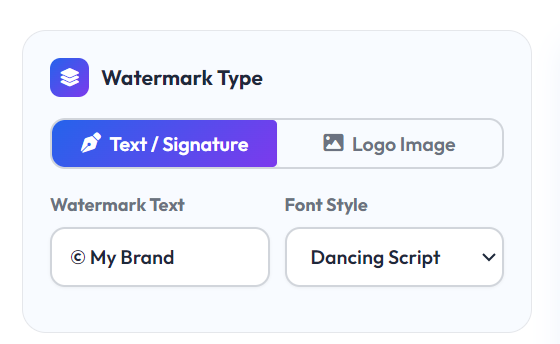
Step 2: Choose Your Watermark Type
Select how you want to watermark your image.
Text Watermark
Enter your desired text, such as:
- Your name
- Business name
- Website URL
- Copyright notice
- Custom message
Logo Watermark
Upload a transparent PNG logo or signature to use as your watermark instead of text.
Step 3: Customize Your Watermark
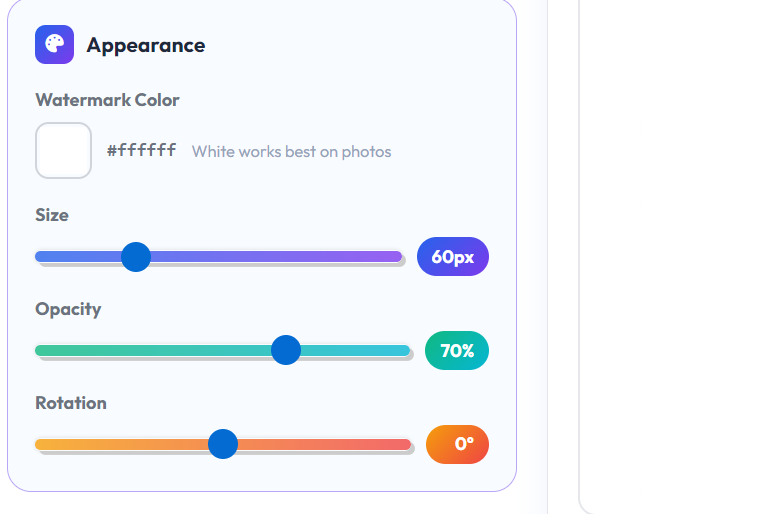
Personalize your watermark using the available editing options.
You can easily adjust:
- Font style
- Text color
- Watermark size
- Opacity (transparency)
- Rotation angle
- Shadow, glow, or outline effects
- Watermark position
The live preview updates instantly so you can see every change before applying it
Step 4: Select the Watermark Position
Choose where your watermark should appear on the image. Available positions include:
- Top Left
- Top Center
- Top Right
- Center Left
- Center
- Center Right
- Bottom Left
- Bottom Center
- Bottom Right

For stronger copyright protection, you can also enable the Tile Across Image option to repeat the watermark across the entire image.
Step 5: Click “Apply Watermark”
After customizing your settings, click the Apply Watermark button. The tool will instantly place your text or logo watermark onto the image while preserving its original quality.

Step 6: Download Your Watermarked Image
When you’re satisfied with the preview, click the Download PNG button to save your newly watermarked image to your device. Your image is processed entirely in your browser, ensuring your files remain private and secure throughout the process.
Frequently Asked Questions (FAQs)
1. What is an Add Watermark to Images tool?
An Add Watermark to Images tool lets you place text or a logo on your photos to protect them from unauthorized use. It is perfect for photographers, designers, bloggers, and businesses that want to display ownership of their images.
2. Is this watermark tool free to use?
Yes. You can add watermarks to your images online for free without paying any subscription or hidden fees.
3. Do I need to create an account?
No. There is no registration or sign-up required. Simply upload your images, add your watermark, and download the final result.
4. Can I add both text and logo watermarks?
Yes. You can choose to add a custom text watermark or upload your own logo to watermark your images.
5. Will the image quality change after adding a watermark?
No. The tool is designed to keep your image quality as high as possible while adding the watermark.
Conclusion–Add Watermark to Images
Our Add Watermark to Images tool makes the process simple, fast, and free. You can upload your images, add a custom text or logo watermark, adjust its size, position, and transparency, and download the final image in just a few clicks. No software installation, no sign-up, and no technical skills are required.
If you’re looking for a secure and easy way to watermark your images online while maintaining excellent image quality, this tool is the perfect solution. Try it today and keep your images protected with professional-looking watermarks in seconds.