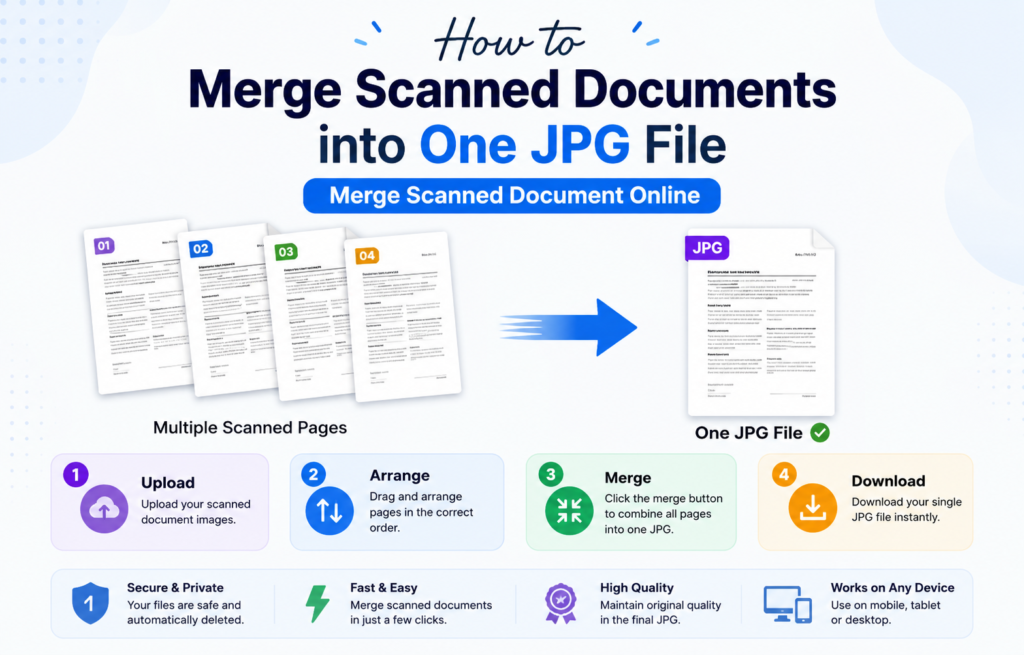
Learn how to convert JPG to PDF on your phone using simple methods for Android and iPhone. Follow this step-by-step guide to convert JPG to PDF quickly and easily. Need to send multiple images as a single document? Learning how to convert JPG to PDF on your phone is one of the easiest ways to organize photos, share scanned documents, and submit files professionally.
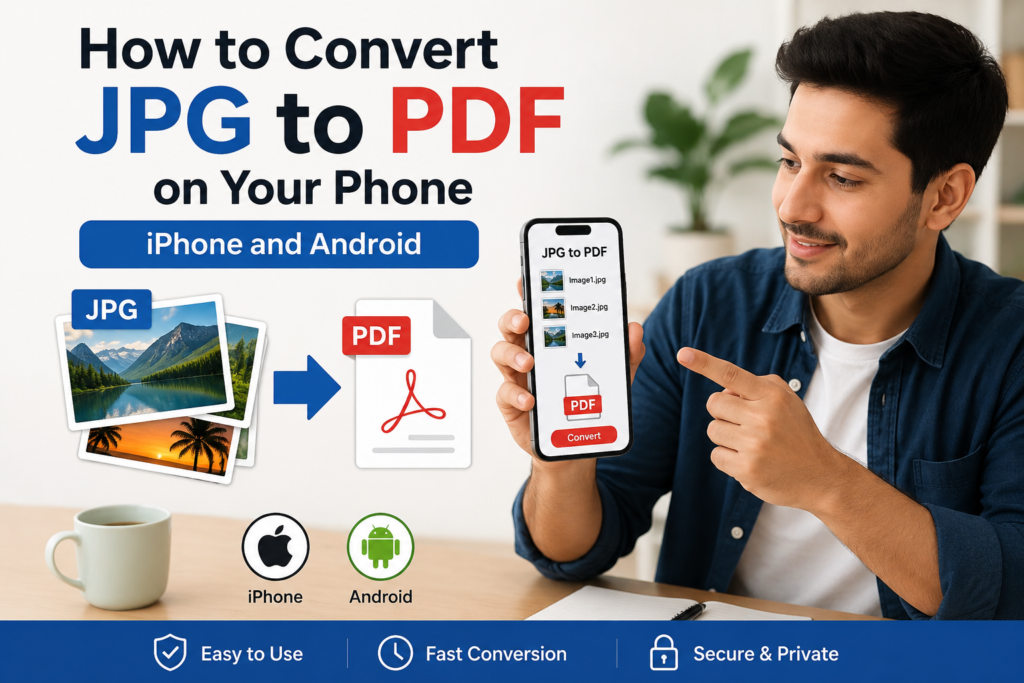
Whether you’re using an Android device or an iPhone, there are several quick methods available. The best part is that you don’t need advanced technical knowledge. In just a few taps, you can convert JPG to the PDF and create high-quality PDF files directly from your smartphone. In this guide, you’ll discover different ways to convert JPG to PDF on both Android and iPhone devices.
Why Convert JPG to PDF?
Many people prefer PDF files because they are easier to share and maintain formatting across different devices. Here are some common reasons why users convert JPG to PDF:
- Combine multiple images into one document.
- Share files professionally.
- Preserve image quality.
- Upload documents for online applications.
- Print documents without formatting issues.
- Reduce clutter by organizing images in one file.
Students, office workers, and business owners frequently convert JPG to PDF when submitting assignments, forms, receipts, or scanned documents.
How to Convert JPG to the PDF on Android
Android phones offer several built-in and third-party methods to convert JPG to PDF.
Method 1: JPG to PDF Using Google Photos
Google Photos provides a simple way to create PDFs from images.
- Open Google Photos.
- Select the JPG image you want to use.
- Tap the Share button.
- Choose Print.
- Select “Save as PDF.”
- Tap the PDF icon.
- Save the file to your device.
This method helps users convert JPG to PDF without installing additional applications.
Method 2: Convert JPG to PDF Using Google Drive
Google Drive includes a built-in scanning feature that creates PDF documents.
- Open Google Drive.
- Tap the “+” button.
- Choose Scan.
- Capture your image.
- Adjust the borders if necessary.
- Save the document.
Google Drive automatically converts JPG images into PDF format, making document management easier.
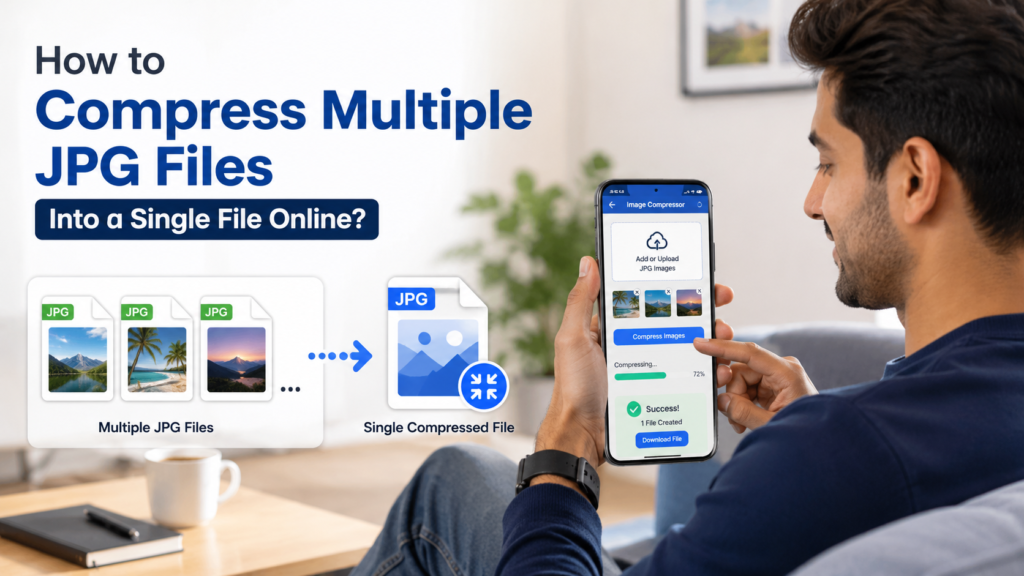
Method 3: Convert JPG to PDF with Online Tools
Many online converters allow users to convert JPG to PDF directly from their mobile browsers.
- Open your preferred converter website combinejpgonline.com.
- Upload your JPG images.
- Arrange image order.
- Press the Convert button.
- Download the PDF file.
Online converters are convenient because they work on both Android and iPhone devices.
How to Convert JPG to PDF on iPhone
Apple devices include built-in features that make it easy to convert JPG to PDF.
Method 1: Using the Files App
The Files app allows users to create PDFs without downloading additional software.
- Open the Photos app.
- Select your images.
- Tap Share.
- Save the images to Files.
- Open the Files app.
- Locate the images.
- Tap the three-dot menu.
- Select Create PDF.
Your iPhone will instantly convert JPG to PDF and save the file.
Method 2: Using the Print Feature
Another easy method uses the built-in Print option.
- Open Photos.
- Choose the image.
- Tap Share.
- Select Print.
- Use the zoom gesture on the preview.
- Tap Share again.
- Save the file as a PDF.
This hidden feature is useful when you need to convert JPG to PDF quickly.
Method 3: Using Apple Notes
The Notes app can also create PDF documents.
- Open Notes.
- Create a new note.
- Insert your image.
- Tap Share.
- Choose Save to Files.
This method works perfectly for scanned documents and receipts.
Best Apps to Convert JPG to PDF
If you frequently need to convert JPG to PDF, dedicated applications can provide additional features.
1. Adobe Scan
Adobe Scan transforms photos into professional PDF documents. It automatically detects edges and improves image quality.
2. CamScanner
CamScanner is popular among students and professionals. It allows users to convert JPG to PDF with editing options.
3. Microsoft Lens
Microsoft Lens offers powerful scanning features and integrates with Microsoft Office applications.
4. Smallpdf
Smallpdf provides simple tools for creating and managing PDF files.
Benefits of Using PDF Files
When you convert JPG to PDF, you gain several advantages:
Better Organization
Instead of storing many separate images, you can combine them into one document.
Easy Sharing
PDF files can be sent through email, messaging apps, or cloud storage without losing quality.
Professional Appearance
PDF documents look cleaner and are commonly accepted for official purposes.
Improved Security
Many PDF editors allow password protection for sensitive files.
When Should You Convert JPG to PDF?
You may need to Combine JPG to PDF in situations such as:
- Job applications.
- University assignments.
- Government forms.
- Business invoices.
- Receipts and bills.
- Personal records.
- Legal documents.
Having everything in PDF format keeps documents organized and easier to manage.
Common Problems When Converting JPG to PDF
- Large File Size: High-resolution images can create large PDFs. Compress images before converting if needed.
- Poor Image Quality: Blurry or low-quality images can result in a poor-quality PDF. Always use clear and sharp images.
- Incorrect Page Order: Arrange your images in the correct sequence before creating the PDF to avoid misplaced pages.
- Conversion Errors: If the conversion process fails, refresh the application or try an alternative method to complete the conversion.
Frequently Asked Questions
1. How can I convert JPG to PDF on my phone?
You can use built-in features on your iPhone or Android device, or use online tools and apps to convert JPG images into PDF files quickly.
2. Can I convert multiple JPG images into one PDF?
Yes, most PDF converter apps and online tools allow you to combine multiple JPG images into a single PDF document.
4. Is it free to convert JPG to PDF?
Yes, many online converters and mobile apps offer free JPG to PDF conversion.
5. Are JPG to PDF converters safe to use?
Most reputable converters are safe and automatically delete uploaded files after a certain period. Always use trusted websites for better security.
Final Thoughts
Knowing how to convert JPG to PDF on your phone can save time and make document sharing much easier. Whether you’re using Android or iPhone, there are several built-in features and trusted applications available to help you create PDF files within seconds.
From submitting assignments to sending business documents, the ability to convert JPG to PDF is a valuable skill for everyday use. Choose the method that works best for your device and enjoy fast, hassle-free document management.
About The Author