
PNG to JPG Converter
Convert PNG images to JPG instantly — processed privately in your browser
Convert PNG to JPG Online Free | Fast & Secure Image Converter
In today’s digital world, converting image formats has become a common everyday need. Whether you’re a web designer, a blogger, a student, or just someone managing their photo library converting PNG to JPG is something almost everyone runs into sooner or later. That’s exactly why we built this free online PNG to JPG converter fast, private, and incredibly easy to use.
If you want to convert JPG to PNG then you have to know that How to convert PNG to JPG File. In this website by using this tool you can easily Convert PNG image into the JPG Image. We have designed this tool specially for this Purpose
This tool converts your PNG images into JPG format completely free and completely secure. The most important thing to know: your files are never uploaded to any server. All processing happens directly inside your browser, which means your privacy is 100% protected at all times.
Key Features of THIS PNG to JPG Converter
Batch Conversion
Select multiple PNG files at once and convert them all in a single click. No need to repeat the process file by file — save time and get more done.
JPG Quality Control
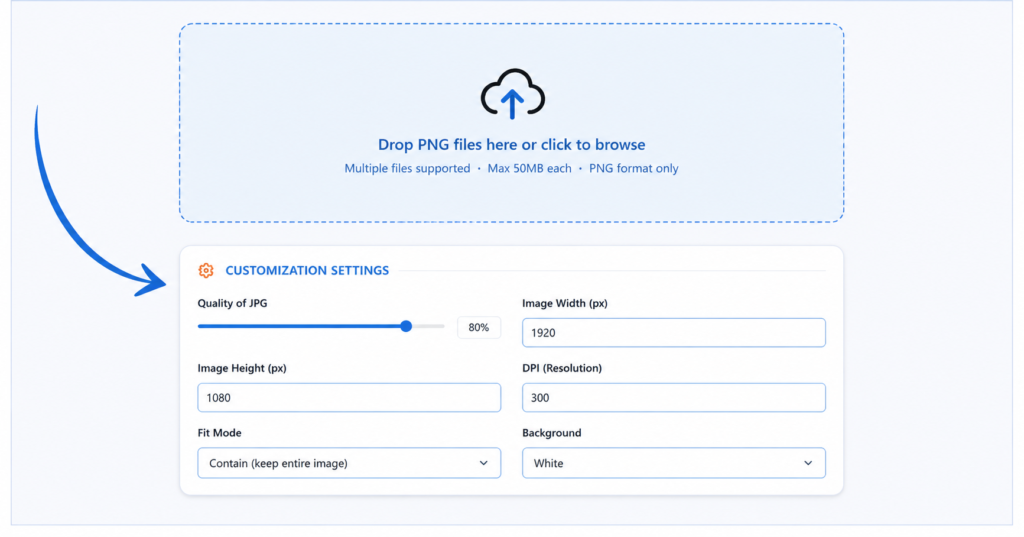
Use the quality slider to decide how sharp your output image should be — anywhere from 10% to 100%. Higher quality means a larger file size; lower quality gives you a smaller, more web-friendly file.
Custom Background Color
PNG images support transparency — JPG does not. This tool lets you choose what color fills in any transparent areas (white by default), so your converted image always looks exactly how you intend it to.
Resize Option
Set a custom width and height for your output image. The tool automatically maintains the correct aspect ratio when you use “Contain” mode, so nothing gets distorted.
Fit Modes
Three options to control how your image fits the new dimensions:
- Contain — Keeps the original aspect ratio, no cropping
- Stretch — Forces the image to the exact dimensions you set
- Cover — Crops the image to fill the target size completely
Rotation
Rotate your image by 90°, 180°, or 270° before converting perfect for fixing photos taken at the wrong angle.
Live Preview
After conversion, see the original and converted image side by side, with file size shown for both — so you know exactly what you’re downloading before you download it.
Why Use This Tool?
- No sign-up required — open and use instantly
- No ads or distractions — clean, focused interface
- Mobile & desktop friendly — works on any device
- 100% private — nothing is ever uploaded anywhere
- Completely free — no hidden costs, no limits
How to Convert PNG Image into JPG Format?
If you want to convert PNG Image into the JPG format follow the given process to convert PNG to JPG.
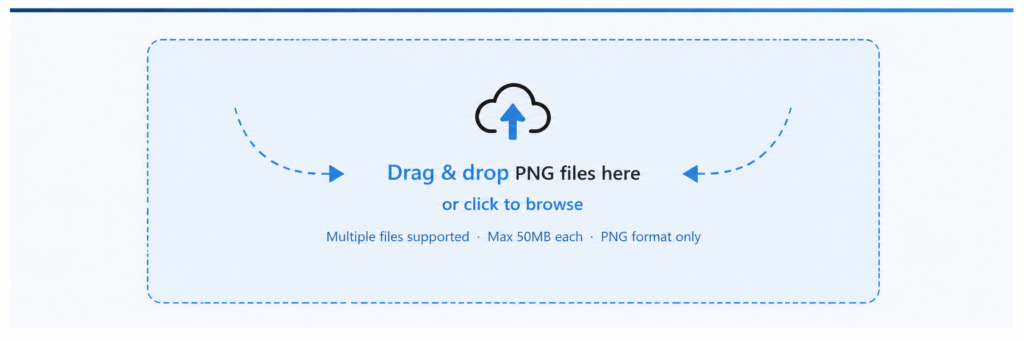
Step 1: Upload The Image
Select and upload the PNG image you want to convert into JPG format from your device.
Step 2: Customize Image Settings
Adjust available settings such as image quality, compression level, or other options according to your needs.
Step 3: Press the Convert Button
Click the Convert to JPG button to instantly transform your PNG image into JPG format and download the converted file.

Frequently Asked Questions
1. Is this PNG to JPG converter really free?
Yes, completely free. There are no hidden charges, no premium plans, and no feature locks. Every single feature batch conversion, quality control, resizing, rotation is available to everyone at no cost.
2. Are my images uploaded to a server?
No. This tool runs entirely inside your browser using built-in web technology. Your images never leave your device, are never sent to any server, and are never stored anywhere. The moment you close the tab, everything is gone.
3. Can I convert multiple PNG files at once?
Yes. The tool supports batch conversion simply select or drag multiple PNG files at once and they will all be converted together in one go. Each file gets its own download button so you can save them individually.
4. Will converting PNG to JPG reduce the image quality?
JPG uses lossy compression, which means some quality is traded for a smaller file size. However, with the quality slider set to 85% or higher, the difference is virtually invisible to the naked eye. You are in full control of how much compression is applied.
5. What happens to transparent areas in my PNG file?
PNG supports transparency but JPG does not. Any transparent area in your PNG will be filled with a solid color during conversion. By default this color is white, but you can change it to any color you like using the background color picker in the tool.
6. Can I resize my image while converting?
Yes. You can set a custom width and height before converting. The tool offers three fit modes Contain (keeps the aspect ratio), Stretch (forces exact dimensions), and Cover (crops to fill) so you have full control over how the resized image looks.
7. Does this tool work on mobile phones?
Yes. The tool is fully responsive and works on all screen sizes smartphones, tablets, and desktops. The interface adapts automatically so the experience is smooth regardless of which device you are using.
8. What is the maximum file size I can convert?
The tool supports PNG files up to 50MB each. Since all processing happens inside your browser, very large files may take a moment longer depending on your device’s processing power. For most everyday images, conversion is nearly instant.