
Convert JPG to PDF Online — Free, Fast & No Watermark
Looking for a free JPG to PDF converter that works right in your browser without uploading your photos to a stranger's server? You just found it. Our JPG to PDF Combiner lets you merge one or dozens of images into a single, perfectly formatted PDF — in seconds, with zero watermarks, zero sign-ups, and zero cost.
Whether you're a student scanning handwritten notes, a freelancer sending an invoice with photos, or a professional compiling a portfolio, converting images to PDF is one of those everyday tasks that should be effortless. This guide covers everything: what the tool does, why it exists, how to use it step by step, how it compares to other popular tools, and answers to the most common questions.
What Is the Combine JPG to PDF Combiner?
The JPG to PDF Combiner is a free, browser-based tool that converts JPG, JPEG, PNG, WEBP, and BMP image files into a single PDF document. Unlike most online converters, it runs entirely on your device your images never leave your computer or phone. There is no server, no cloud upload, and no third party ever sees your files.
upports Multiple Formats — Upload JPG, JPEG, PNG, WEBP, and BMP images and combine them into one PDF document without converting them manually first.
100% Browser-Based — The tool works directly inside your web browser, so you do not need to install any software or apps.
Privacy Focused — Your images stay on your device at all times. Nothing is uploaded to a server, ensuring complete privacy and security.
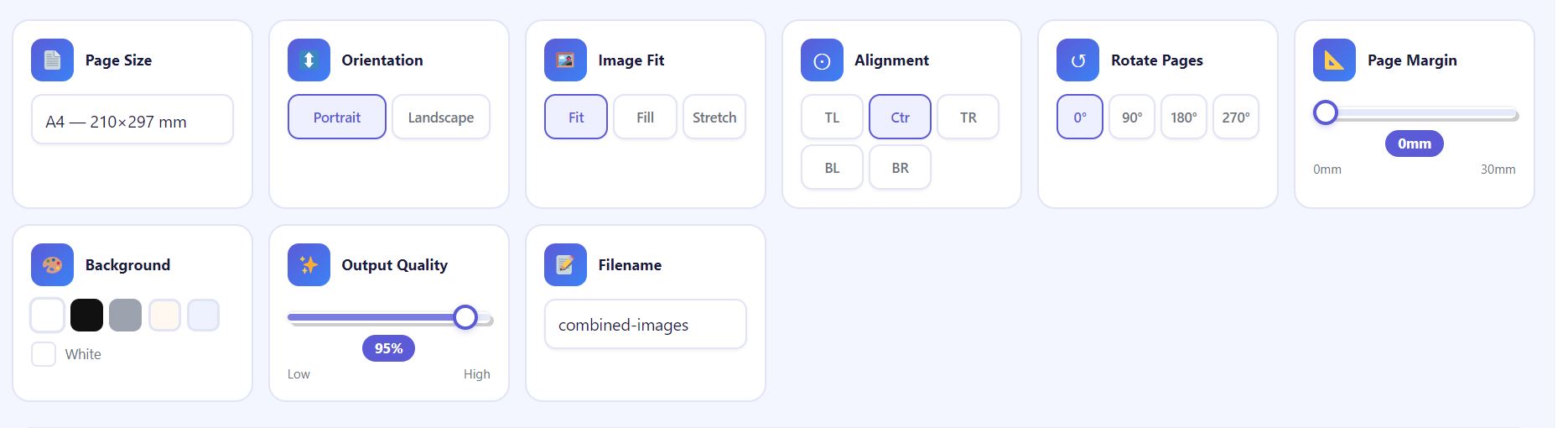
Multiple Page Sizes — Select from standard paper sizes like A4, Letter, A3, A5, and Legal, or create a custom page size in millimeters.
Portrait & Landscape Modes — Choose the page orientation that best suits your images and document layout.
Image Fit Options — Decide how images should appear on the page with Fit, Fill, or Stretch modes for better control over the final result.
Flexible Image Alignment — Position images exactly where you want them, including center, corners, or other alignment options.
Page Rotation Support — Rotate pages by 0°, 90°, 180°, or 270° to ensure images display correctly.
Adjustable Margins — Set page margins anywhere from 0 mm to 30 mm to create more spacing around images.
Background Color Selection — Customize the page background with colors such as White, Black, Gray, Cream, or Blue.
Custom Output Quality — Adjust image quality from 30% for smaller file sizes to 100% for maximum image clarity.
Custom PDF Filename — Give your PDF a personalized name before downloading it for easier organization.
Drag-and-Drop Reordering — Rearrange images in any order before creating the PDF, both on desktop and mobile devices.
Combine Multiple Images into One PDF — Merge several photos into a single, organized PDF file in just a few clicks.
Fast and Free — Use the tool without paying fees, creating accounts, or dealing with hidden charges.
Mobile-Friendly Interface — Enjoy a smooth experience on smartphones, tablets, laptops, and desktop computers.
The entire process takes under a minute. Here's exactly what to do:
Step 1 | Upload Your Images
Click the "Click or Drag & Drop Your Images" upload area at the top of the tool, or drag your image files directly onto it. You can select multiple files at once, or add them one by one. Supported formats are JPG, JPEG, PNG, WEBP, and BMP. There is no limit on the number of images.

Step 2 | Customize Your Image Settings
Take full control of how your PDF looks before downloading. Adjust page size, orientation, margins, image alignment, quality, background color, and more to create a PDF that matches your exact needs. Whether you're preparing documents for printing, sharing, or personal use, these settings help you achieve the perfect result with just a few clicks.
Step 3 | Arrange Pages And Download the PDF
Reorder your images by dragging and dropping them into the desired sequence. Once everything looks perfect, choose your preferred settings and click the Create PDF button. Your combined PDF will be generated instantly and downloaded to your device with your chosen filename.